Executive Summary & Core Takeaways: While standard CSS filter properties (blur, brightness, contrast) provide quick cosmetic tweaks, SVG filters represent a complete hardware-accelerated programmable shader pipeline. By chaining filter primitives, web developers can compute custom duotone matrices, procedural Perlin noise textures, water caustics, and organic liquid physics directly inside the browser.
- Programmable Primitives: SVG filters operate like a node-based audio synthesizer or shader graph: primitives consume input channels (
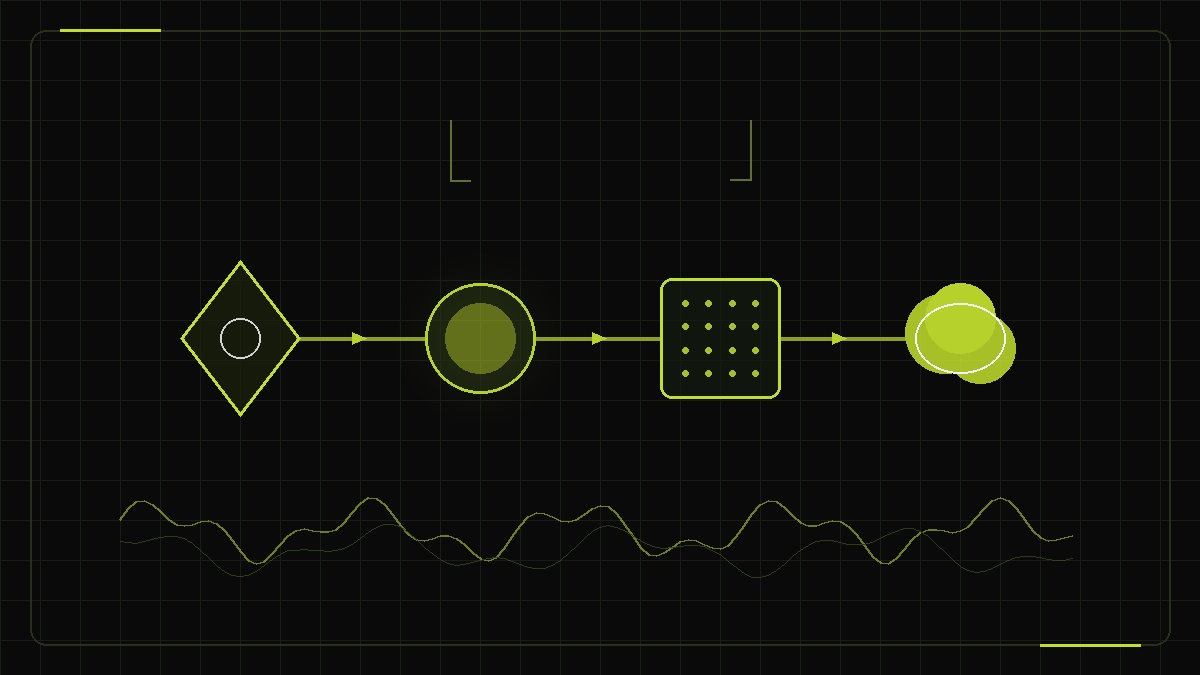
SourceGraphic,SourceAlpha), process pixel data, and emit named intermediate results. - feColorMatrix Power: A single 5×4 linear algebra matrix allows developers to isolate color channels, adjust alpha thresholds, and build high-performance duotone color grading.
- Procedural Textures:
<feTurbulence>generates infinite Perlin noise and fractal grain in mathematical vectors with zero downloaded bitmap bandwidth. - Universal DOM Application: Any SVG filter defined in a hidden
<svg>block can be applied to standard HTML buttons, headings, and cards using CSSfilter: url(#my-filter).
1. The Paradigm Shift: Why SVG Filters Surpass Standard CSS Filters
Every frontend engineer is familiar with the CSS filter property introduced in CSS3:
.card {
  filter: blur(8px) contrast(150%) drop-shadow(0 10px 20px rgba(0,0,0,0.3));
}
These CSS filter functions are convenient, but they are rigid pre-packaged black boxes. You cannot access intermediate alpha channels, you cannot feed the result of a blur back into a color multiplication pass, and you cannot generate dynamic textures or distortion vectors.
SVG filters, by contrast, are an open graph of filter primitives (elements prefixed with fe, standing for filter effect). They grant low-level control over every individual pixel channel: Red, Green, Blue, and Alpha. You can branch, blend, warp, threshold, and recombine image channels with the same mathematical precision found in GLSL fragment shaders or Adobe After Effects node trees.
2. Anatomy of the Filter Pipeline: In, In2, Result & Source Graphic
An SVG filter is declared inside an <svg> element's <defs> block using the <filter> tag. The filter itself is invisible; it serves as a shader program referenced via its id:
<svg width="0" height="0" style="position: absolute;">
  <defs>
    <filter id="duotoneShader" x="-20%" y="-20%" width="140%" height="140%">
      <!-- Primitive 1: Soften input -->
      <feGaussianBlur in="SourceGraphic" stdDeviation="2" result="softImage" />

      <!-- Primitive 2: Apply Duotone Color Matrix -->
      <feColorMatrix in="softImage" type="matrix"
        values="0.33 0.33 0.33 0 0.1
                0.33 0.33 0.33 0 0.8
                0.33 0.33 0.33 0 0.2
                0    0    0    1 0" result="colorGraded" />
    </filter>
  </defs>
</svg>
The Standard Graphic Buffers
SVG filters provide built-in keywords that represent default graphic streams:
SourceGraphic: The original element in its full RGB color and alpha opacity.SourceAlpha: The alpha silhouette of the source element. The RGB channels are forced to black (0, 0, 0), while the alpha channel is preserved. This is the primary input for generating custom drop shadows, glows, and bevels.BackgroundImage&BackgroundAlpha: An image snapshot of the canvas behind the filtered element (rarely supported on modern GPU compositors due to security and performance constraints).FillPaint&StrokePaint: The current fill and stroke values of the target element.
3. feColorMatrix Demystified: The 5×4 Color Transformation Engine
Among all SVG primitives, <feColorMatrix> is by far the most powerful. It allows developers to perform linear transformations on color and alpha channels simultaneously. When type="matrix" is declared, the values attribute accepts a sequence of 20 space-separated numbers forming a 5×4 mathematical matrix:
| G' | = | a10 a11 a12 a13 a14 | × | G |
| B' | | a20 a21 a22 a23 a24 | | B |
| A' | | a30 a31 a32 a33 a34 | | A |
| 1 |
Practical Matrix Recipes
Recipe 1: High-Fidelity Luminance Grayscale
Standard desaturation weights match human eye perception (30% Red, 59% Green, 11% Blue):
values="0.30 0.59 0.11 0 0
        0.30 0.59 0.11 0 0
        0.30 0.59 0.11 0 0
        0    0    0    1 0"
Recipe 2: Cyberpunk Neon Lime & Dark Emerald Duotone
Converts all luminance to our signature neon lime #C1DD2D highlights and deep obsidian shadows:
values="0.25 0.50 0.10 0 0.05
        0.35 0.60 0.15 0 0.20
        0.05 0.10 0.05 0 0.02
        0    0    0    1 0"
Recipe 3: The Alpha Threshold Clamp (Gooey Fuse)
Multiplies the alpha channel by 19 and subtracts 9, creating an ultra-steep step function that turns soft blurry edges into crisp solid borders:
values="1 0 0 0 0
        0 1 0 0 0
        0 0 1 0 0
        0 0 0 19 -9"
4. The Legendary Gooey Liquid Effect: Mechanics & Physics
The "gooey effect" (popularized across award-winning frontend design portfolios) creates the organic illusion of liquid droplets stretching, bulging, and fusing together as they move past one another.
The secret is a two-step mathematical trick executed in real time by the GPU:
- Step 1: feGaussianBlur merges alpha fields. When two vector circles approach each other, a Gaussian blur with
stdDeviation="10"causes their outer translucent alpha fields to overlap, creating an additive density bridge between the two shapes. - Step 2: feColorMatrix snaps the threshold. The browser runs the merged alpha field through the matrix
0 0 0 19 -9. Any pixel with an alpha value below ~45% is clamped to 0 (completely transparent), while any pixel above ~45% is multiplied to 1.0 (completely opaque). The soft bridge instantly snaps into a taut liquid membrane.
<!-- The Production-Ready Gooey Filter -->
<filter id="gooeyLiquidFilter" x="-20%" y="-20%" width="140%" height="140%">
  <feGaussianBlur in="SourceGraphic" stdDeviation="10" result="blur" />
  <feColorMatrix in="blur" type="matrix" values="1 0 0 0 0
                                                 0 1 0 0 0
                                                 0 0 1 0 0
                                                 0 0 0 19 -9" result="goo" />
  <feComposite in="SourceGraphic" in2="goo" operator="atop" />
</filter>
The final <feComposite operator="atop"> step is critical: it pastes the crisp original SourceGraphic (with its original colors and sharp vector interior) directly over the newly fused gooey silhouette.
5. Procedural Noise & Fractal Grain with <feTurbulence>
Generating authentic film grain, watercolor paper textures, or marble veining traditionally requires downloading hefty 500KB PNG bitmap overlays. With <feTurbulence>, the browser synthesizes procedural Perlin noise in real time directly on the client machine with zero network payload.
Key Attributes
type: Accepts eitherturbulence(creates sharp, turbulent flame-like ridges) orfractalNoise(smooth, cloud-like Gaussian Perlin noise).baseFrequency: Controls the spatial density of the noise. Lower numbers (e.g.0.02) produce large, billowy clouds; higher numbers (e.g.0.85) generate fine, microscopic TV static grain.numOctaves: Specifies the number of fractal noise layers synthesized and blended together. Higher octaves (3 to 5) add rich organic detail at the cost of slight CPU rasterization overhead.
<!-- Procedural Film Grain Shader -->
<filter id="filmGrainShader">
  <feTurbulence type="fractalNoise" baseFrequency="0.65" numOctaves="3" result="noise" />
  <feColorMatrix in="noise" type="matrix" values="0 0 0 0 0
                                                 0 0 0 0 0
                                                 0 0 0 0 0
                                                 0 0 0 0.15 0" result="softGrain" />
  <feBlend in="SourceGraphic" in2="softGrain" mode="multiply" />
</filter>
6. Refraction, Distortion & Liquid Glass with <feDisplacementMap>
When you combine <feTurbulence> with <feDisplacementMap>, you can create realistic frosted glass refraction, water ripple distortions, and glitch effects.
<feDisplacementMap> takes two inputs: the target graphic (in) and a displacement map (in2). The color values of pixels in the displacement map are used to physically offset the pixel coordinates of the target image:
7. Interactive Developer Studio: The Live SVG Filter & Shader Studio
Use the interactive shader studio below to test real-time SVG filter presets, tweak mathematical parameters, and see how shaders composite over vector icons and typography.
// Generated SVG Filter Code
8. Applying SVG Filters to Standard HTML Elements via CSS
One of the web's best-kept secrets is that SVG filters are not restricted to vector graphics. You can apply any SVG filter programmatically to HTML elements (such as <button>, <img>, <div>, or <h1>) using standard CSS:
/* Define the invisible SVG filter somewhere in your HTML document */
<svg width="0" height="0" class="svg-shader-defs">
  <defs>
    <filter id="frostedDuotone">
      <feColorMatrix type="matrix" values="0.2 0.5 0.1 0 0.1
                                           0.3 0.6 0.1 0 0.8
                                           0.1 0.2 0.1 0 0.2
                                           0   0   0   1 0" />
    </filter>
  </defs>
</svg>

/* Apply to any HTML element in external CSS */
.hero-card {
  filter: url(#frostedDuotone);
  transition: filter 300ms ease;
}

.hero-card:hover {
  filter: none;
}
This technique allows web developers to achieve artistic duotones, glass distortions, and high-contrast liquid hover states across entire HTML UI components with zero JavaScript runtime overhead.
9. Performance Benchmarks: GPU Memory Allocation & Mobile Battery
While SVG filters are extraordinarily powerful, poor implementation can cripple rendering performance and drain mobile battery life. To keep your application running at a consistent 60fps:
| Filter Primitive | Computational Complexity | GPU / CPU Bottleneck | Optimization Recommendation |
|---|---|---|---|
feColorMatrix |
O(N) per pixel | Very Low (Runs on Fragment Shader) | Ultra-fast; safe to use on large fullscreen elements. |
feGaussianBlur |
O(N × radius) | Medium (Increases with stdDeviation) | Keep stdDeviation ≤ 16px on mobile. For huge blurs, scale down image first. |
feTurbulence |
O(N × numOctaves) | High (Procedural math calculation) | Limit numOctaves to 1 or 2. Avoid animating baseFrequency every frame. |
feDisplacementMap |
O(N) with texture lookups | Medium (Texture cache lookups) | Ensure map and source graphic share the same pixel dimensions. |
Golden Rules for High-Performance SVG Filters
- Animate Transforms, Not Filters: Apply the filter once to an element, and animate CSS
transform: translate3d(...). Never animatestdDeviationor matrix coefficients continuously in a requestAnimationFrame loop. - Bound the Filter Region: Always restrict
x,y,width, andheighton the<filter>tag to the exact bounding box needed. Never setwidth="500%"unnecessarily. - will-change Warning: Do not blanket-apply
will-change: filteracross dozens of elements, as it exhausts mobile GPU texture memory.
10. Frequently Asked Questions
What is the difference between CSS filters and SVG filters?
CSS filters (such as blur(), contrast(), and drop-shadow()) are high-level shorthand macros with fixed algorithms. In contrast, SVG filters are pixel-level programmable visual pipelines composed of primitive nodes (prefixed with 'fe' for filter effect). SVG filters allow multi-channel matrix multiplication, Perlin noise synthesis, displacement mapping, lighting specular models, and custom alpha thresholding that pure CSS cannot achieve.
How does feColorMatrix transform pixel colors in an SVG?
feColorMatrix performs linear algebra on every pixel's RGBA values using a 5×4 transformation matrix. The input pixel vector [R, G, B, A, 1] is multiplied by the 20 matrix coefficients to calculate the new [R', G', B', A'] output channels. This enables precise duotone coloring, luminance-to-alpha conversion, selective channel isolation, and extreme alpha contrast curves.
How does the SVG gooey liquid effect work?
The gooey effect combines two filter primitives: first, feGaussianBlur blurs the overlapping shapes, merging their translucent outer alpha halos; second, feColorMatrix applies an aggressive alpha multiplier (e.g. 18 to 20) with a negative alpha offset (e.g. -7 to -9). This thresholding converts the soft gradient blur into crisp, solid vector edges that appear to stretch and fuse like liquid mercury.
Can you apply an SVG filter to standard HTML elements?
Yes, standard HTML elements (such as divs, images, headings, and buttons) can reference an SVG filter defined in an SVG <defs> block using the CSS filter property: filter: url(#filter-id). This works universally across all modern desktop and mobile browsers.
Why are SVG filters sometimes clipped or cut off around the edges?
By default, an SVG <filter> element restricts its rendering canvas to x="-10%" y="-10%" width="120%" height="120%" of the bounding box. If an effect like a large Gaussian blur or displacement map pushes pixels beyond this 10% safety margin, the effect is abruptly clipped. To fix this, widen the filter primitive boundaries: <filter x="-50%" y="-50%" width="200%" height="200%">.
What are the performance considerations when using SVG filters on mobile devices?
SVG filters are executed during the browser's rasterization phase. Heavy primitives like feTurbulence, feDisplacementMap, and large-radius feGaussianBlur force the browser to compute CPU or GPU fragment shaders per frame. For smooth 60fps animations, avoid animating filter parameters dynamically; instead, animate CSS transforms (translate, scale, rotate) on elements that have static pre-compiled filters applied.